
Introduction
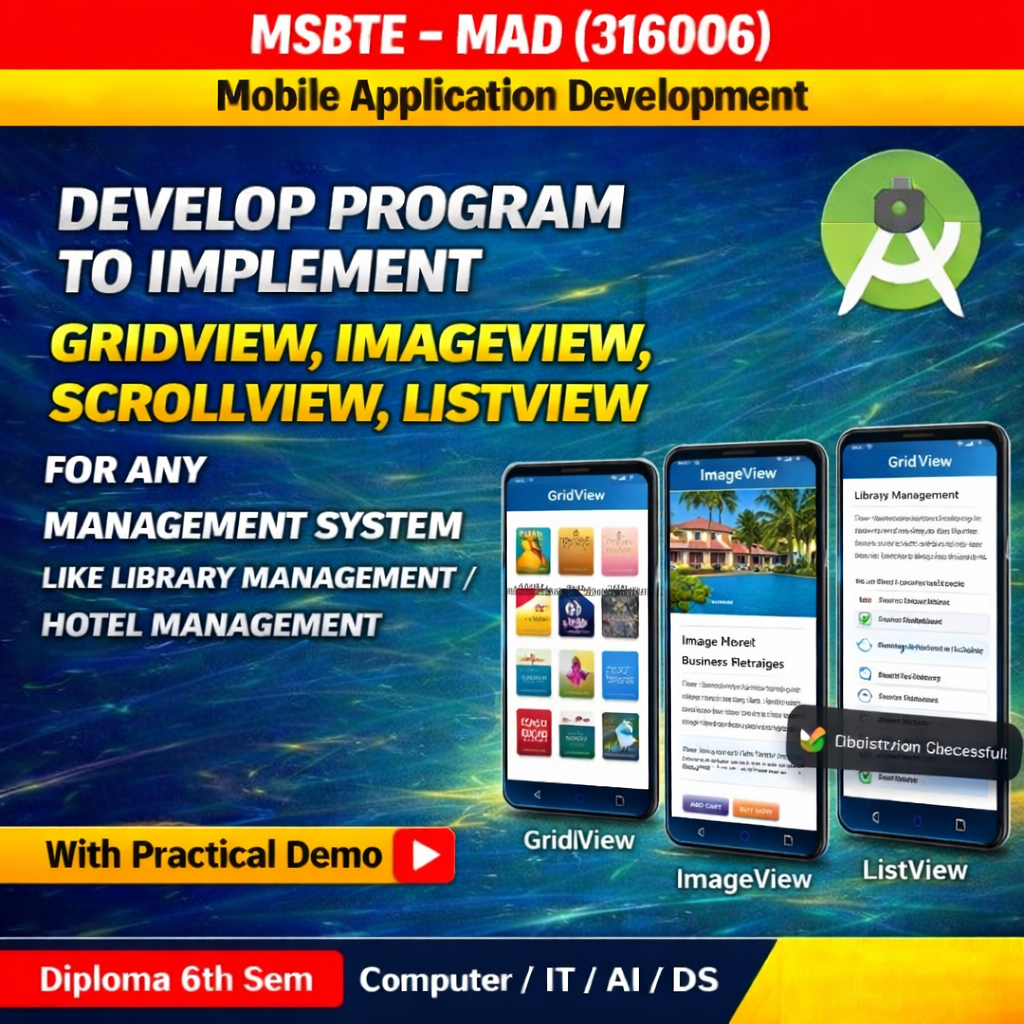
Android provides several UI components that help developers design interactive applications.
Some important components include:
- GridView – Displays items in a grid format (rows and columns).
- ImageView – Used to display images in the application.
- ScrollView – Allows the screen to scroll when the content is larger than the device screen.
- ListView – Displays a list of items vertically.
In this practical, we will create a simple Library Management System interface to display books using these components.
Step 1: Create a New Android Project
- Open Android Studio
- Click New Project
- Select Empty Activity
- Choose Java as the programming language
- Click Finish
Step 2: activity_main.xml
Open res → layout → activity_main.xml
<?xml version="1.0" encoding="utf-8"?>
<ScrollView xmlns:android="http://schemas.android.com/apk/res/android"
    android:layout_width="match_parent"
    android:layout_height="match_parent"
    android:background="#F5F5F5">

    <LinearLayout
        android:layout_width="match_parent"
        android:layout_height="wrap_content"
        android:orientation="vertical"
        android:padding="16dp">

        <TextView
            android:layout_width="wrap_content"
            android:layout_height="wrap_content"
            android:text="Library Dashboard"
            android:textSize="24sp"
            android:textStyle="bold"
            android:layout_marginBottom="16dp"/>

        <ImageView
            android:id="@+id/libBanner"
            android:layout_width="match_parent"
            android:layout_height="150dp"
            android:scaleType="centerCrop"
            android:src="@android:drawable/ic_dialog_info"
            android:background="#CCCCCC"
            android:layout_marginBottom="20dp"/>

        <TextView
            android:layout_width="wrap_content"
            android:layout_height="wrap_content"
            android:text="Browse Categories"
            android:textStyle="bold" />

        <GridView
            android:id="@+id/gvCategories"
            android:layout_width="match_parent"
            android:layout_height="200dp"
            android:numColumns="2"
            android:verticalSpacing="10dp"
            android:horizontalSpacing="10dp"
            android:stretchMode="columnWidth"
            android:layout_marginTop="10dp"/>

        <TextView
            android:layout_width="wrap_content"
            android:layout_height="wrap_content"
            android:text="New Arrivals"
            android:textStyle="bold"
            android:layout_marginTop="20dp"/>

        <ListView
            android:id="@+id/lvBooks"
            android:layout_width="match_parent"
            android:layout_height="300dp"
            android:layout_marginTop="10dp"
            android:background="#FFFFFF"
            android:divider="#EEEEEE"
            android:dividerHeight="1dp"/>

    </LinearLayout>
</ScrollView>
Step 3: MainActivity.java
Open MainActivity.java
package com.example.libraryapp;

import android.os.Bundle;
import android.view.View;
import android.widget.AdapterView;
import android.widget.ArrayAdapter;
import android.widget.GridView;
import android.widget.ListView;
import android.widget.Toast;
import androidx.appcompat.app.AppCompatActivity;

public class MainActivity extends AppCompatActivity {

    // Data for GridView
    String[] categories = {"Fiction", "Science", "History", "Biography", "Comics", "Poetry"};

    // Data for ListView
    String[] books = {"The Great Gatsby", "A Brief History of Time", "The Art of War",
                     "Steve Jobs Biography", "Batman: Year One", "The Waste Land"};

    @Override
    protected void onCreate(Bundle savedInstanceState) {
        super.onCreate(savedInstanceState);
        setContentView(R.layout.activity_main);

        // 1. Setup GridView (Categories)
        GridView gvCategories = findViewById(R.id.gvCategories);
        ArrayAdapter gridAdapter = new ArrayAdapter<>(this,
                android.R.layout.simple_list_item_1, categories);
        gvCategories.setAdapter(gridAdapter);

        // 2. Setup ListView (Books)
        ListView lvBooks = findViewById(R.id.lvBooks);
        ArrayAdapter listAdapter = new ArrayAdapter<>(this,
                android.R.layout.simple_list_item_1, books);
        lvBooks.setAdapter(listAdapter);

        // Click Listener for GridView
        gvCategories.setOnItemClickListener(new AdapterView.OnItemClickListener() {
            @Override
            public void onItemClick(AdapterView parent, View view, int position, long id) {
                Toast.makeText(MainActivity.this, "Opening Genre: " + categories[position], Toast.LENGTH_SHORT).show();
            }
        });

        // Click Listener for ListView
        lvBooks.setOnItemClickListener(new AdapterView.OnItemClickListener() {
            @Override
            public void onItemClick(AdapterView parent, View view, int position, long id) {
                Toast.makeText(MainActivity.this, "Viewing Book: " + books[position], Toast.LENGTH_SHORT).show();
            }
        });
    }
}
Output
When the application runs:
- ImageView displays a library banner image.
- ListView shows a list of books available in the library.
- GridView displays book categories in a grid format.
- ScrollView allows the screen to scroll if the content exceeds the device screen size.
Conclusion
In this program, we implemented GridView, ImageView, ScrollView, and ListView to design a simple Library Management System interface.
- ImageView displays images.
- ListView shows book lists.
- GridView organizes categories in a grid format.
- ScrollView enables scrolling for large content.
These UI components help create interactive and user-friendly Android applications.