

Introduction
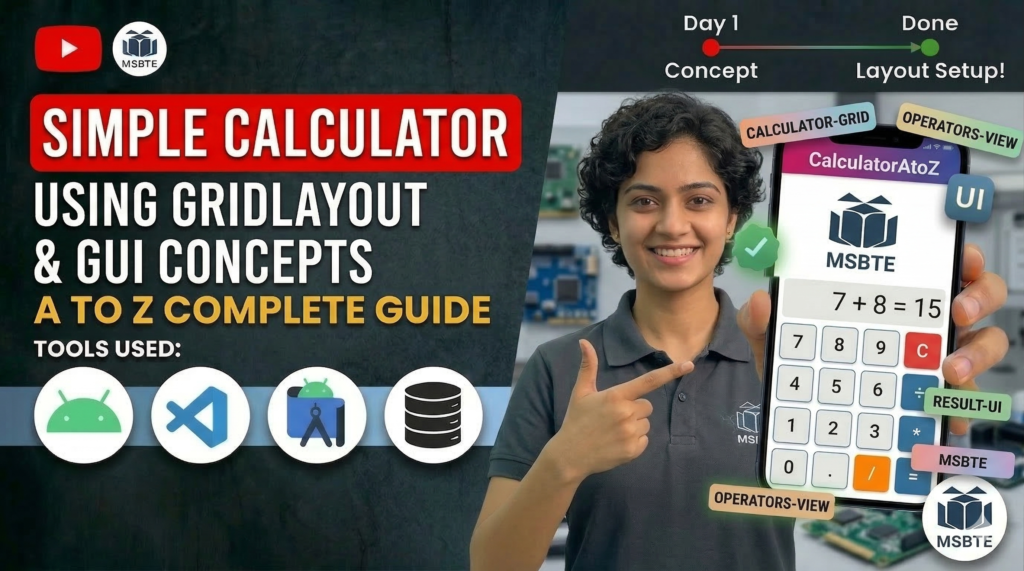
A Graphical User Interface (GUI) is created using Grid Layout to arrange buttons in rows and columns like a real calculator. Users can press the buttons to enter numbers and operations, and the result will be displayed on the screen.
Some important components include:
1. Android Studio: Android Studio is the official IDE (Integrated Development Environment) used to develop Android applications.
2. Activity: An activity represents a single screen of the application. The calculator interface is created inside the main activity.
3. Grid Layout: A grid layout is used to arrange calculator buttons in rows and columns so that the interface looks organized.
4. TextView / EditText: This component displays the numbers entered by the user and the calculated result.
5. Button: This component displays the numbers entered by the user and the calculated result.
6. OnClickListener: An onClickListener handles button click events and performs the required calculations.
In this practical, we will create a simple calculator that uses grid layout and GUI concepts.
Step 1: Create a New Android Project
- Open Android Studio
- Click New Project.
- Select Empty Activity
- Choose Java as the Programming language
- Click Finish.
Step 2: activity_main.xml
<?xml version="1.0" encoding="utf-8"?>
<LinearLayout xmlns:android="http://schemas.android.com/apk/res/android"
    android:layout_width="match_parent"
    android:layout_height="match_parent"
    android:orientation="vertical"
    android:padding="16dp">

    <TextView
        android:id="@+id/tvDisplay"
        android:layout_width="match_parent"
        android:layout_height="120dp"
        android:background="#F0F0F0"
        android:gravity="bottom|end"
        android:padding="16dp"
        android:text="0"
        android:textSize="48sp" />

    <GridLayout
        android:layout_width="match_parent"
        android:layout_height="0dp"
        android:layout_weight="1"
        android:columnCount="4"
        android:rowCount="5"
        android:layout_marginTop="16dp">

        <Button android:text="C" android:layout_columnWeight="1" />
        <Button android:text="/" android:layout_columnWeight="1" />
        <Button android:text="*" android:layout_columnWeight="1" />
        <Button android:text="Del" android:layout_columnWeight="1" />

        <Button android:text="7" android:layout_columnWeight="1" />
        <Button android:text="8" android:layout_columnWeight="1" />
        <Button android:text="9" android:layout_columnWeight="1" />
        <Button android:text="-" android:layout_columnWeight="1" />

        <Button android:text="4" android:layout_columnWeight="1" />
        <Button android:text="5" android:layout_columnWeight="1" />
        <Button android:text="6" android:layout_columnWeight="1" />
        <Button android:text="+" android:layout_columnWeight="1" />

        <Button android:text="1" android:layout_columnWeight="1" />
        <Button android:text="2" android:layout_columnWeight="1" />
        <Button android:text="3" android:layout_columnWeight="1" />
        <Button android:text="="
            android:layout_rowSpan="2"
            android:layout_gravity="fill"
            android:backgroundTint="#4CAF50" />

        <Button android:text="0" android:layout_columnSpan="2" android:layout_gravity="fill" />
        <Button android:text="." android:layout_columnWeight="1" />

    </GridLayout>
</LinearLayout>
Step 3: Main Activity. java
Open Main Activity. java
package com.example.calculator;

import android.os.Bundle;
import android.view.View;
import android.widget.Button;
import android.widget.TextView;
import androidx.appcompat.app.AppCompatActivity;

public class MainActivity extends AppCompatActivity {

    private TextView tvDisplay;
    private double firstValue = Double.NaN;
    private double secondValue;
    private char currentAction;

    @Override
    protected void onCreate(Bundle savedInstanceState) {
        super.onCreate(savedInstanceState);
        setContentView(R.layout.activity_main);

        tvDisplay = findViewById(R.id.tvDisplay);
    }

    // Generic method to handle number clicks (assign this to buttons in XML)
    public void onNumberClick(View v) {
        Button b = (Button) v;
        if (tvDisplay.getText().toString().equals("0")) {
            tvDisplay.setText(b.getText());
        } else {
            tvDisplay.append(b.getText());
        }
    }

    // Logic for operators
    public void onOperatorClick(View v) {
        Button b = (Button) v;
        firstValue = Double.parseDouble(tvDisplay.getText().toString());
        currentAction = b.getText().charAt(0);
        tvDisplay.setText("");
    }

    public void onEqualClick(View v) {
        if (!Double.isNaN(firstValue)) {
            secondValue = Double.parseDouble(tvDisplay.getText().toString());
            double result = 0;

            switch (currentAction) {
                case '+': result = firstValue + secondValue; break;
                case '-': result = firstValue - secondValue; break;
                case '*': result = firstValue * secondValue; break;
                case '/': result = firstValue / secondValue; break;
            }
            tvDisplay.setText(String.valueOf(result));
            firstValue = Double.NaN;
        }
    }
}
Output:
When the application runs:
- A display area at the top
- Buttons arranged in a grid
- Users can press numbers and operators to calculate results.
Conclusion:
In this program, we implemented a simple calculator application using Android GUI components and GridLayout.
- Activity (MainActivity) – Represents the main screen of the application.
- TextView / EditText – Displays numbers entered by the user and the result.
- Button – Used for numbers and operations.
- GridLayout – Arranges buttons in rows and columns.
- OnClickListener – Handles button click events.
This project helps to understand basic Android app design and arithmetic operations.